
S Pen Pro
OriginalThe original S Pen gesture app. Pioneered custom stylus pen gestures on Android.
S Pen Pro is an S Pen app for your own gestures. Hold the pen button, make a gesture over or on the screen, and it runs the action you chose: open an app, go back, take a screenshot, control media and more. No Bluetooth and no S Pen battery needed.
S Pen Pro screenshots
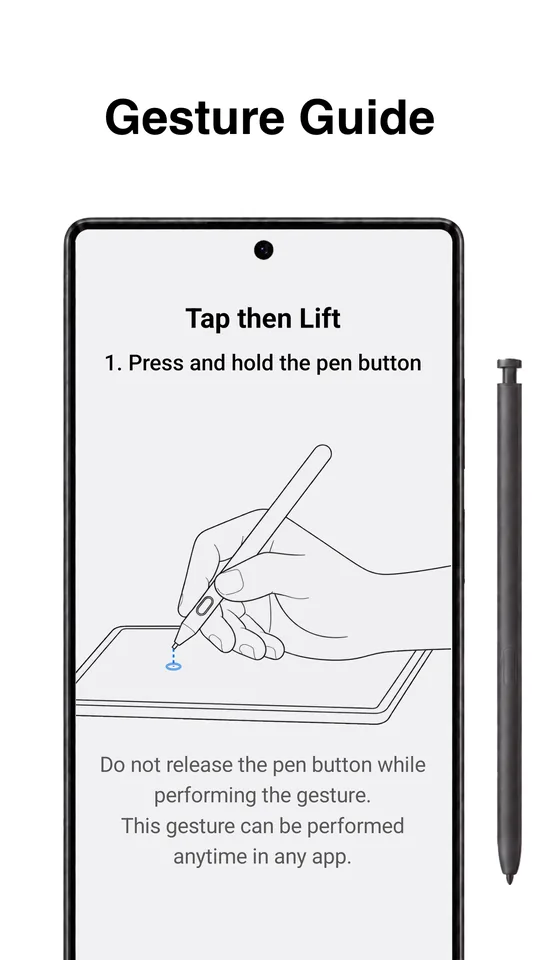
What this S Pen gesture app does
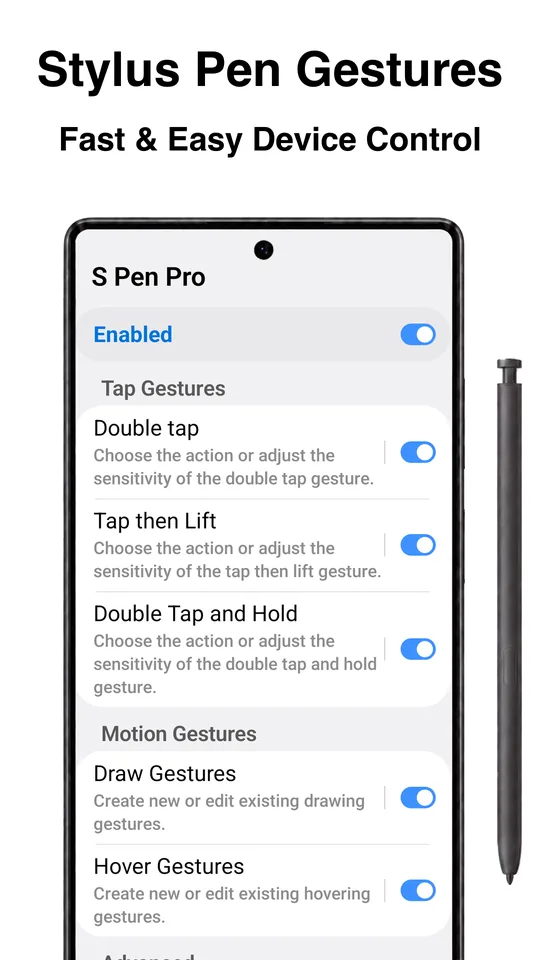
S Pen Pro is an S Pen app that turns the pen you already have into a remote for your phone or tablet. Hold the pen button and tap, hover or draw, and the app runs whatever you assigned to that gesture. Everything happens close to the screen with minimal pen movement, so you can keep writing or sketching and still jump to another app, go back or take a screenshot without reaching for buttons.
It was built for the Samsung S Pen first, but it works with any active stylus that supports hovering and has a pen button, including the Wacom Pro Pen on Android tablets. S Pen Pro pioneered custom stylus gestures on Android and is the original app of its kind.
Made by AnyDroid, the app runs entirely on your device. It does not need an internet connection or an account, and the gestures work even when the S Pen has no Bluetooth connection or battery charge.
S Pen gestures you can add
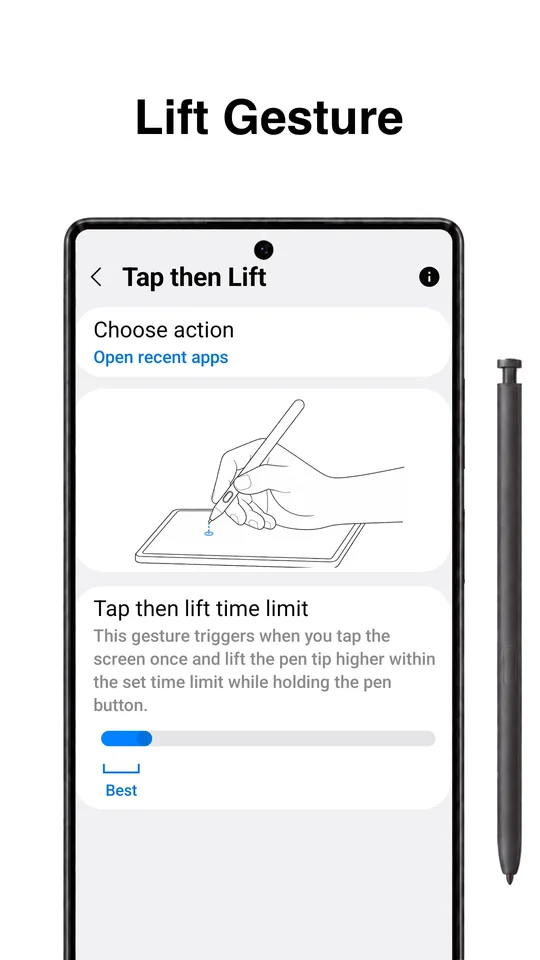
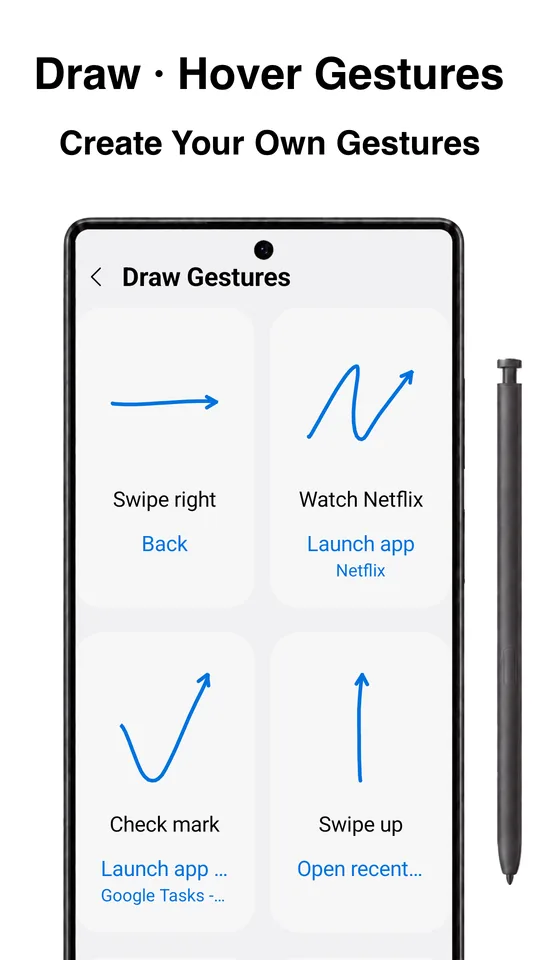
Keep the pen button held while you perform each gesture. Hover and draw gestures are custom shapes you record yourself, and you can create as many as you like.
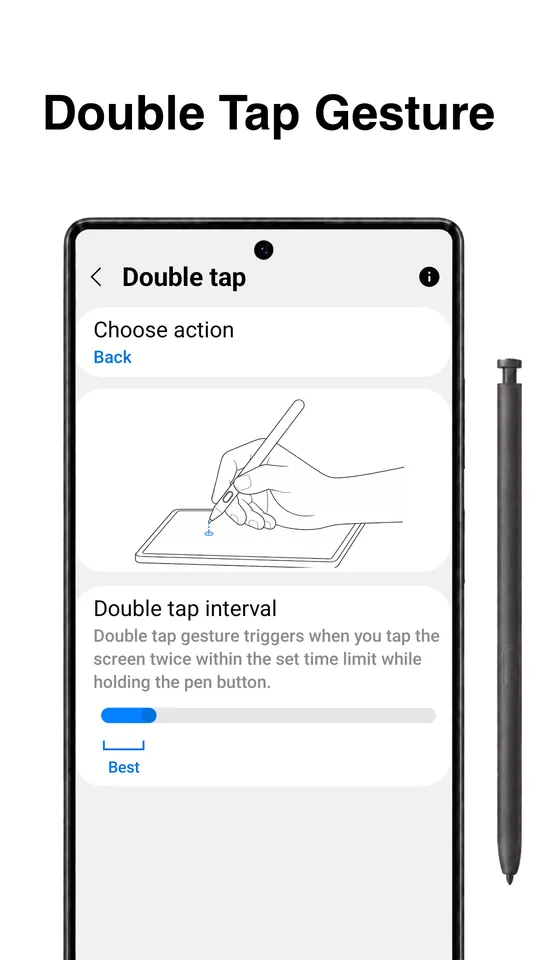
- Double tapTap the screen twice.
- Tap then liftTap once, then lift the pen tip.
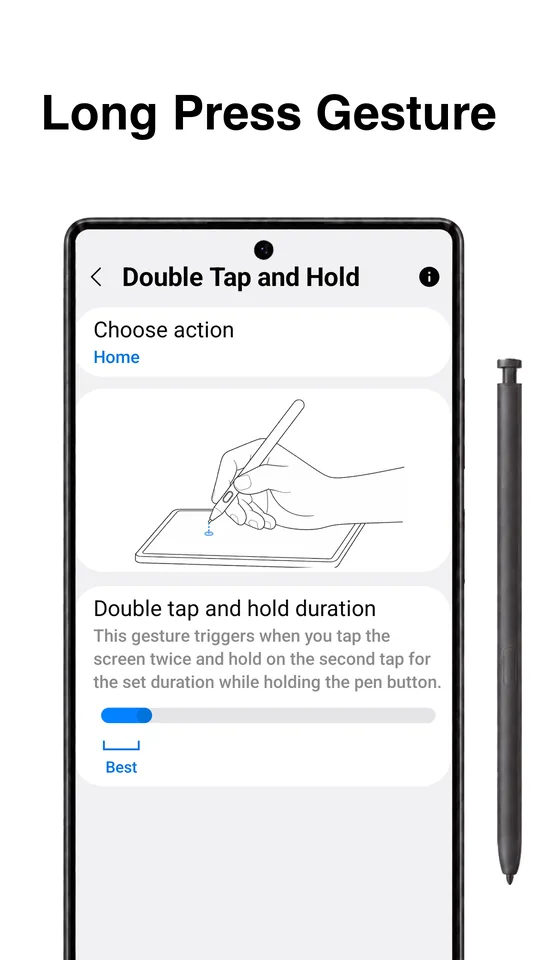
- Double tap and holdTap twice and hold the second tap.
- Hover gesturesTap once, draw a shape in the air above the screen, then release the button or lift the pen.
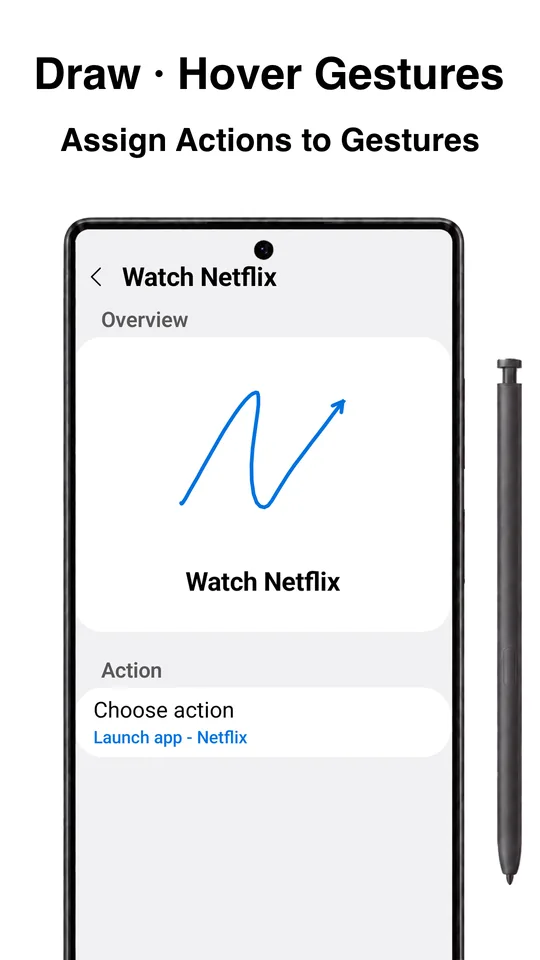
- Draw gesturesTap once, draw a shape on the screen, then lift the pen tip.
Actions your S Pen gestures can run
Every S Pen gesture can run one of these actions. Some advanced features require a purchase.
- Launch an app or app shortcut
- Go back, go home, open recent apps
- Switch to the previous app
- Open the app drawer
- Open the notification panel or Quick Settings
- Lock the screen
- Take a screenshot
- Open the power menu
- Toggle auto-rotate, adjust brightness
- Flashlight and split screen
- Media volume, play or pause, next or previous track
- Voice assistant and web search
- Show a custom notification
- And more
Compatible S Pen devices and other styluses
The device and stylus must support both hovering and pen button input. Examples that work:
- Galaxy S26 Ultra + S Pen
- Galaxy Tab S11 + S Pen
- Wacom MovinkPad Pro 14 + Pro Pen 3
- Other Android devices with a hover-capable active stylus and a detectable pen button
S Pen Pro vs Samsung Air Actions
Samsung Air Actions controls the device from a distance, using a Bluetooth S Pen like a remote. S Pen Pro is a close-range gesture app used over the screen itself: it needs no Bluetooth connection or pen battery, lets you record your own hover and draw gestures, and works with non-Samsung styluses too. The two can be used side by side.
Permissions and privacy
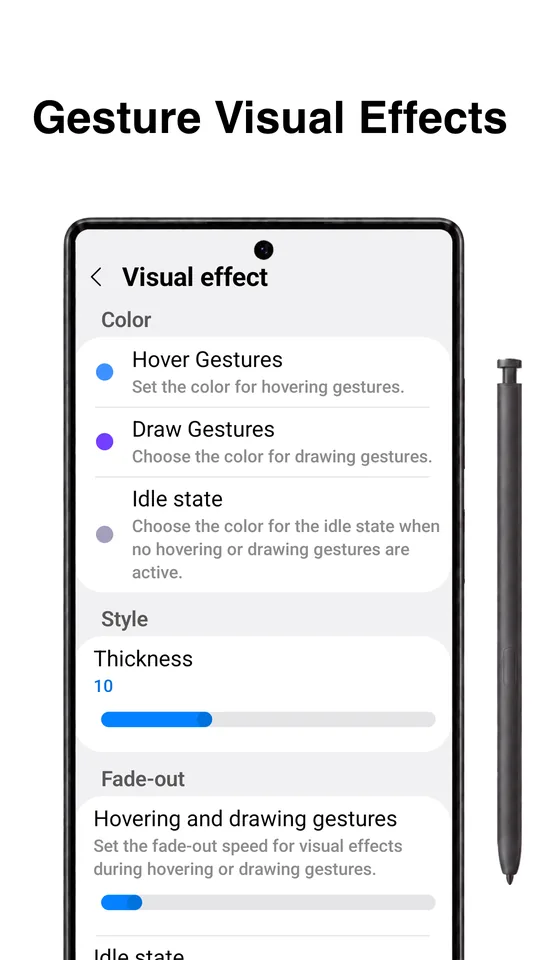
S Pen Pro uses Android's accessibility service only to run the actions assigned to your gestures, to show gesture visual effects, and to disable gesture features in apps you exclude. No personal information is collected or shared through the accessibility features.
Read the full S Pen Pro privacy policy.
S Pen Pro FAQ
Which devices work with S Pen Pro?
Any Android phone or tablet with an active stylus that supports hovering and has a pen button. Galaxy phones and tablets with an S Pen are the most common, and tablets with a Wacom Pro Pen work as well. Capacitive styluses without hover or a button do not.
Do I need Bluetooth or a charged S Pen?
No. S Pen Pro reads the pen's hover and button directly from the screen digitizer, so it works even if Bluetooth is off or the S Pen battery is empty.
How is S Pen Pro different from Samsung Air Actions?
Air Actions is a remote-control feature that works from a distance over Bluetooth with a fixed set of gestures. S Pen Pro works close to the screen, lets you record your own hover and draw gestures, assigns any action you choose, and works with non-Samsung styluses. You can use both.
Is S Pen Pro free?
Yes. The S Pen app is free and shows ads. Some advanced features require a one-time purchase.
Why does S Pen Pro need the accessibility service?
Android only allows an app to perform system actions such as Back, Home, screenshots or launching apps on your behalf through the accessibility service. S Pen Pro uses it only to run the actions you assign, to show gesture effects, and to turn gestures off in apps you exclude. It does not collect personal information.
Get S Pen Pro
Free on Google Play, from AnyDroid. Questions? Email support@anydroid.com.