

Quick Settings Tile
Tiles & controls
Your apps and settings, one swipe down away.
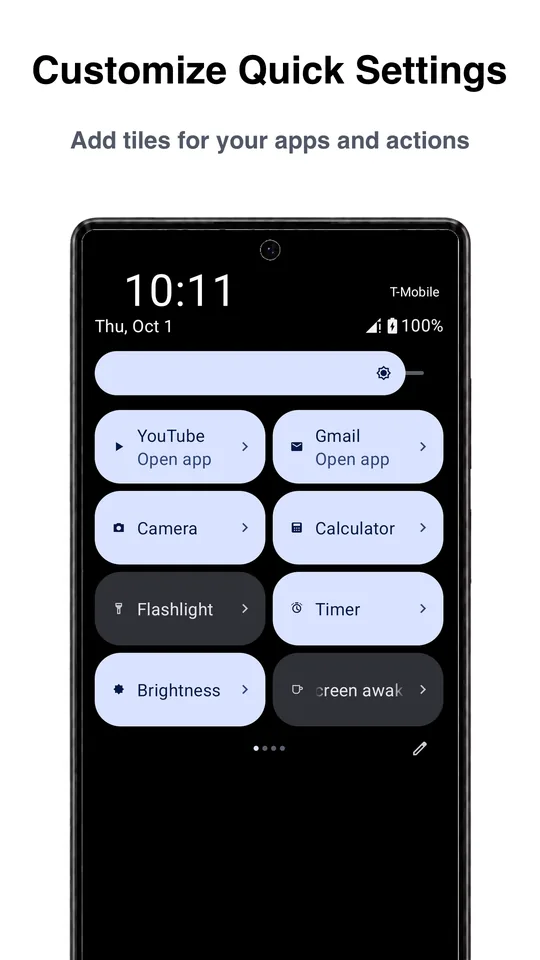
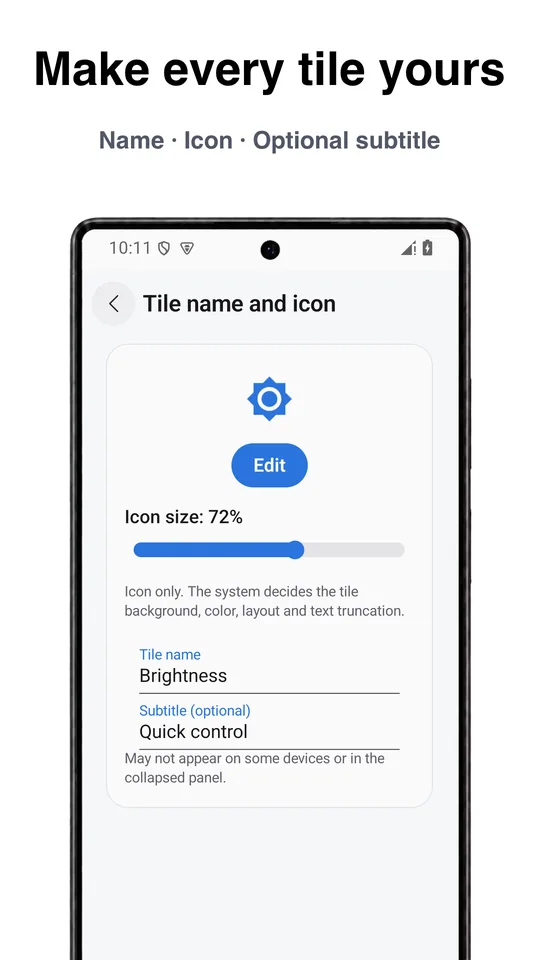
Add custom tiles to the Android Quick Settings panel for the things you do most. Each tile gets its own name, icon and subtitle, and all features and up to 64 tiles are free.
Quick Settings Tile screenshots
What this Quick Settings tile app does
The Android Quick Settings panel is one swipe away from anywhere, but it only holds the tiles your phone ships with. Quick Settings Tile lets you add your own custom tiles: a tile that opens an app, calls a contact, opens a folder, takes a screenshot, or flips several settings at once.
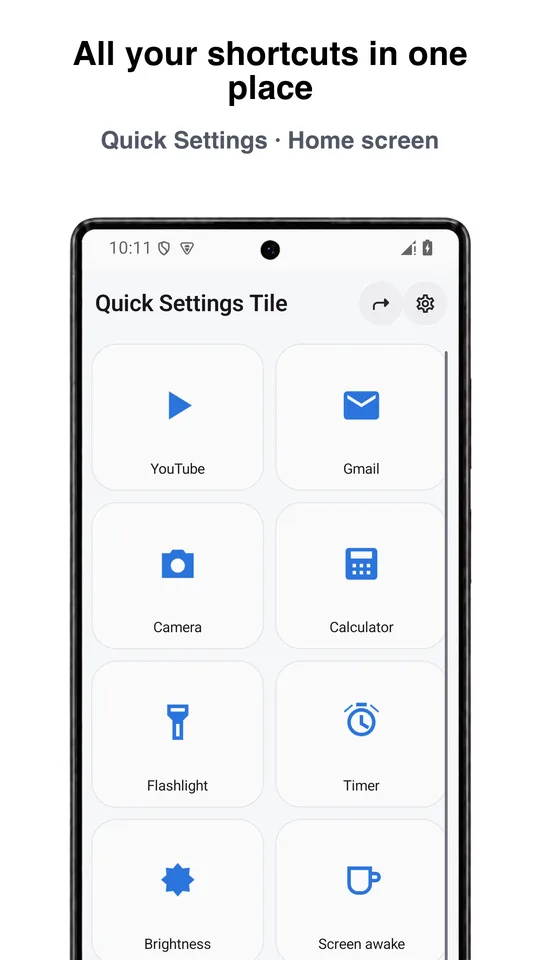
Every tile can be renamed and given its own icon and subtitle, so the panel reads the way you think. Tiles can also be placed on the home screen as shortcuts or widgets, and the app works with Tasker.
All features and up to 64 custom tiles are free, from AnyDroid.
Modes: several settings in one tap
A Mode applies a set of settings together. When you turn it off, only the settings that still match the mode are restored, so changes you made in between are kept.
- Do Not Disturb
- Mute media
- Screen rotation
- Auto brightness
- Brightness
- Screen timeout
- Sync
- Turn off automatically
What a custom Quick Settings tile can do
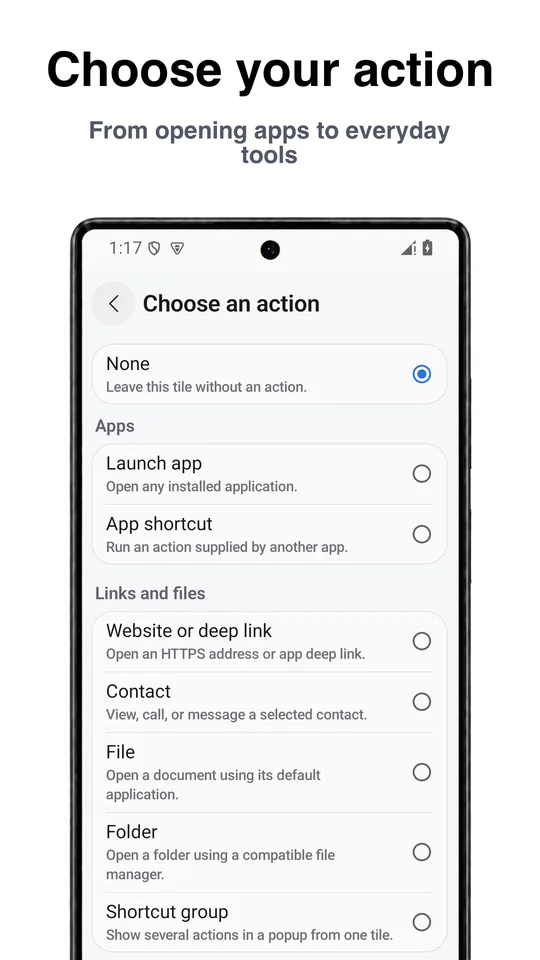
Apps and shortcuts
- Launch app
- App shortcut
- Website or deep link
- Contact: view, dial, call, message
- File or folder
- Android setting
- Custom intent
- Shortcut group
Display
- Brightness
- Auto brightness
- Auto-rotate / orientation
- Screen timeout
- Keep screen awake
- Reading mode
- Color inversion
- Immersive mode
- Ambient display
- Screenshot
- Lock screen
- Split screen
Sound and media
- Play / pause
- Media volume
- Mute media
- Volume panel
- Ringer / vibrate / silent
- Do Not Disturb
- Vibrate for calls
- Mono audio
Device and Android settings
- Flashlight
- Battery level
- Network traffic
- Automatic sync
- Clipboard
- Camera / Calculator
- New alarm / timer
- Web search / Sound search
- File manager
- Keyboard picker
- SIM and mobile network
- Notification history
- Power menu
- Animation speed
- Heads-up notifications
- USB / wireless debugging
- Show taps
Permissions and privacy
Quick Settings Tile uses Android's accessibility service only for four actions that need it: take screenshot, lock screen, split screen and open power menu. Everything else works without it.
Read the full Quick Settings Tile privacy policy.
Quick Settings Tile FAQ
How many custom tiles can I add?
Up to 64 custom Quick Settings tiles, and all of them are free along with every feature of the app.
What is a Mode?
A tile that applies several settings at once, such as Do Not Disturb plus muted media plus a fixed brightness. Turning the mode off restores only the settings that still match it.
Can a tile open a website, a contact or a file?
Yes. Tiles can open websites and deep links, view, dial, call or message a contact, open files and folders, jump to an Android setting, or send a custom intent.
Can I put several actions behind one tile?
Yes. A shortcut group shows a dialog or bottom sheet with the apps and actions you chose, and can also be used as a home screen folder or widget.
Does it work with Tasker?
Yes. Tasker integration is supported, and you can back up and restore your tile settings.
Why does it ask for the accessibility service?
Only for four actions that Android does not allow otherwise: take screenshot, lock screen, split screen and open power menu. You can skip it if you do not use those.
Get Quick Settings Tile
Free on Google Play, from AnyDroid. Questions? Email support@anydroid.com.